What's new

New features, improvements and fixes in PowerSheets, newest first.

Customizable check-ins are live!

Ask your athletes questions. See all their answers in one spot.

  • Make your own questions. Go to Settings → Check-in. Ask about sleep, soreness, stress, steps... or anything you want.
  • Pick when they get asked: before training, after training, every day, or once a week.
  • Pick how they answer: a number, a scale, a choice, yes or no, or free text.
  • Pick who gets them: all your athletes, or just a few.
  • Style: Give each question its own icon and color.
  • Bodyweight and macros (protein, carbs, fat) are turned on by default.

Open an athlete and tap the new Check-in tab to see their answers. The Weekly tab shows weekly answers with averages of daily check-ins.
The check-in app got a redesign

Your athletes' check-in app just got a whole redesign.

  • New bottom menu. Check-in, Program, Tracking and Competition now sit at the bottom of the screen, one tap away.
  • Grouped exercises. Multiple rows for the same lift now show as one group, giving you and your athletes a better overview of their training.

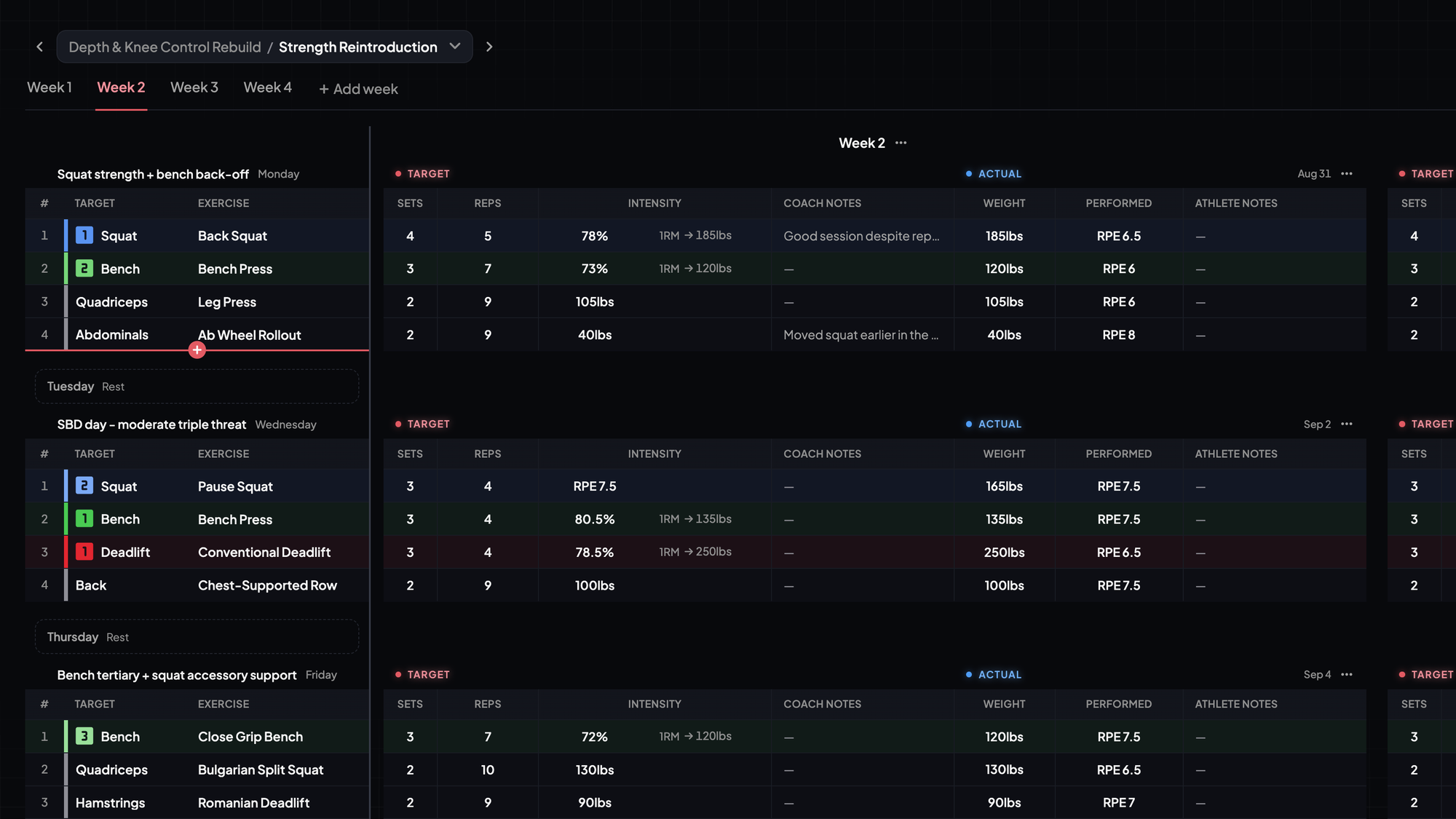
Program each week on its own

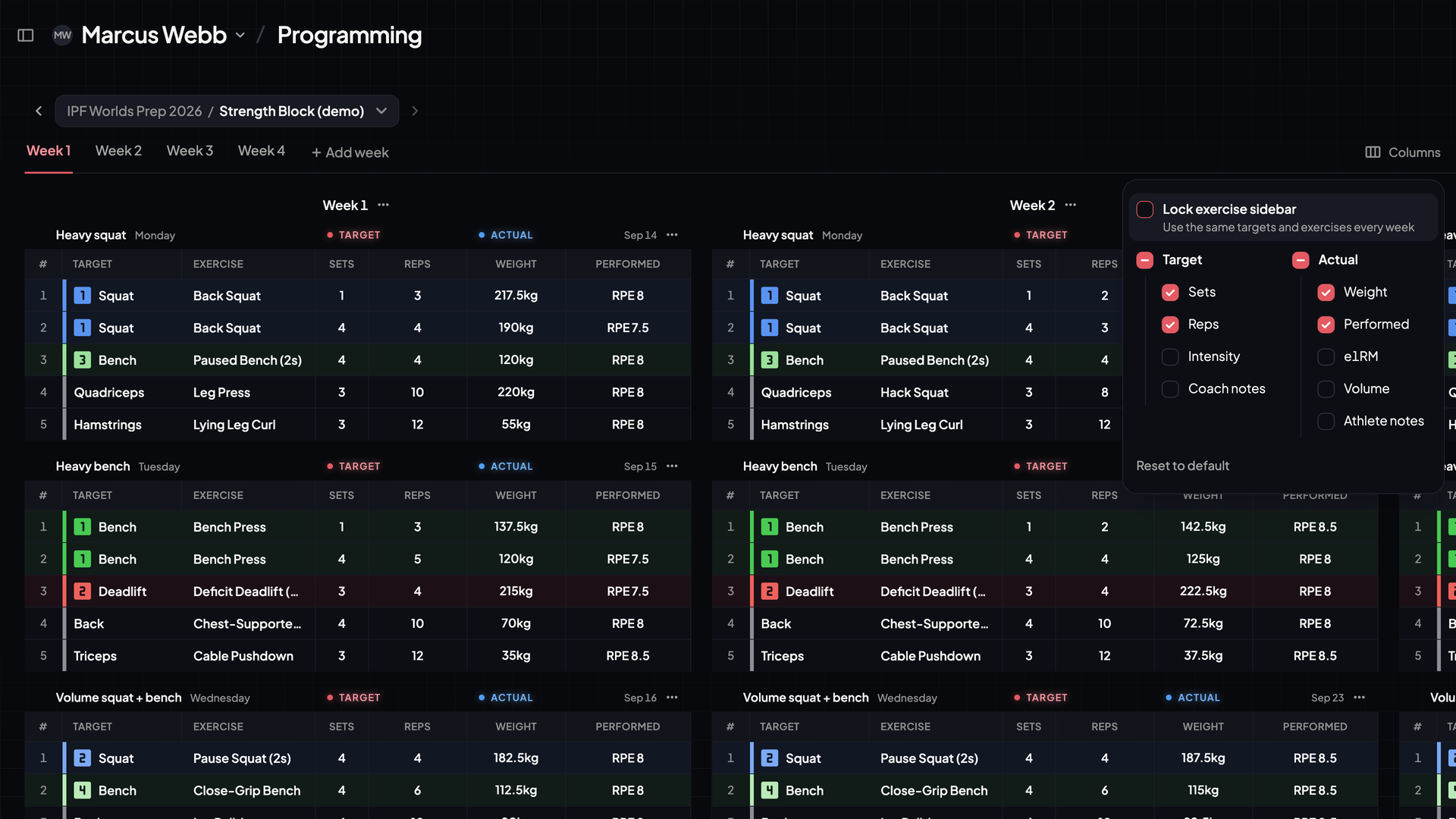
Programming grid showing Week 1 and Week 2 side by side, with the Lock exercise sidebar setting in the Columns menu

You can now view and edit targets and exercises for each week separately.

  • How to turn it on: open the Columns menu and uncheck Lock exercise sidebar.
  • On mobile: view always works week by week, without the sidebar.

Want to save maximal space? Reenable the sidebar in the Columns menu by checking Lock exercise sidebar.

A faster programming grid

Programming grid with shorter rows, three training days on screen and the hover + line under Monday

Programming got quicker to work in. You see more of the plan, and you'll get programs out to your athletes faster.

  • Shorter rows to save vertical space, so you can see more of the program without scrolling
  • Hover under a day to add an exercise with the new "+" button. This replaces the old "add exercise" button
  • Adding, deleting and duplicating rows is instant now, no more waiting for the server
  • The row menu moved into the drag handle on the left side of the sidebar
  • Better keyboard navigation in the sidebar, so you can edit the whole row without touching your mouse
  • Long macrocycle and block names no longer get cut off in the block picker

Change or skip exercises mid-block

You can now change or skip exercises mid-block.

  • Change an exercise: right click a cell in the week where the change starts and pick Change exercise from W.... Type the new exercise and keep or change its target and rank. Earlier weeks keep the old exercise.
  • Skip an exercise for a week (ideal for tapers): right click a cell in that week and pick Skip exercise in W....
  • Skip several weeks at once: right click the row in the sidebar and use the Active weeks menu.

A skipped week shows as a gap in the programming view instead of an empty row. The exercise is also left out of the athlete's check-in for that week.

Updated flagging system

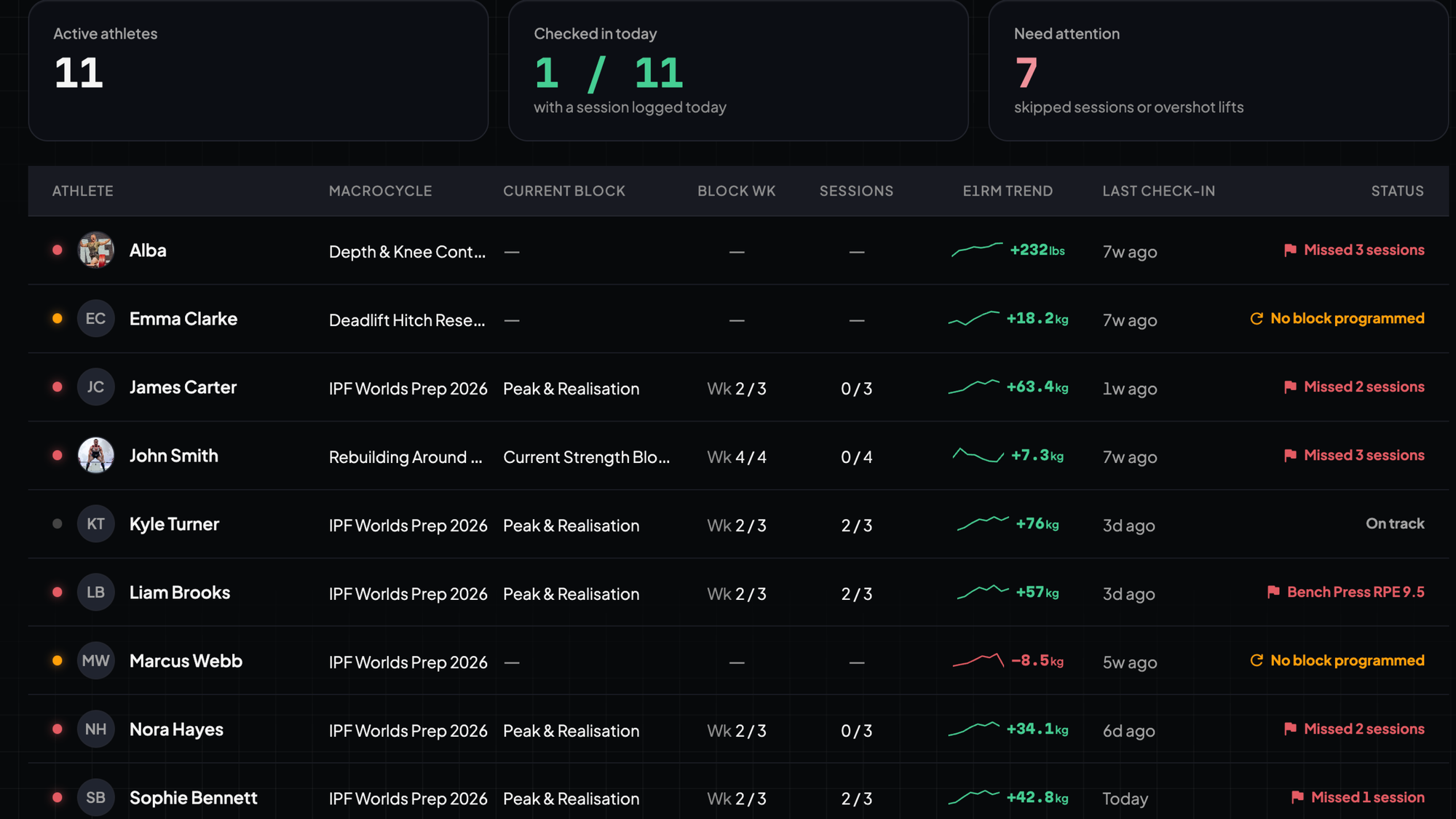
Coach roster with a "Need attention" count of 7 and red flag statuses down the Status column

The Status column now shows you what went off-track this week.

  • Missed sessions. Whenever an athlete missed one or more sessions in the last 7 days, it shows up in the roster as "Missed 1 session".
  • Overshoots. If an athlete pushes a squat, bench or deadlift past the plan, you'll see a flag appear: "Bench Press RPE 9.5" or "Back Squat 140kg".
  • Needs a new program. "Needs new block" and "No block programmed" show up as a flag when no program is found.

Spreadsheet shortcuts are here!

Programming now works like your sheet. Drag to select, copy, paste, fill and undo, with the shortcuts you know already.

  • Drag to select any range. Shift+Arrow grows/shrinks the selection, Cmd+A takes the whole training.
  • Cmd+C, Cmd+X, Cmd+V copy, cut and paste. Copy from a previous week or from a real spreadsheet, every cell lands in the right column.
  • Fill handle: drag the corner down to repeat a set-up across exercises. Cmd+D fills from the top cell.
  • Cmd+Z undoes any edit. Cmd+Shift+Z brings it back.
  • Delete clears whatever is selected.

New for your athletes: share a training session

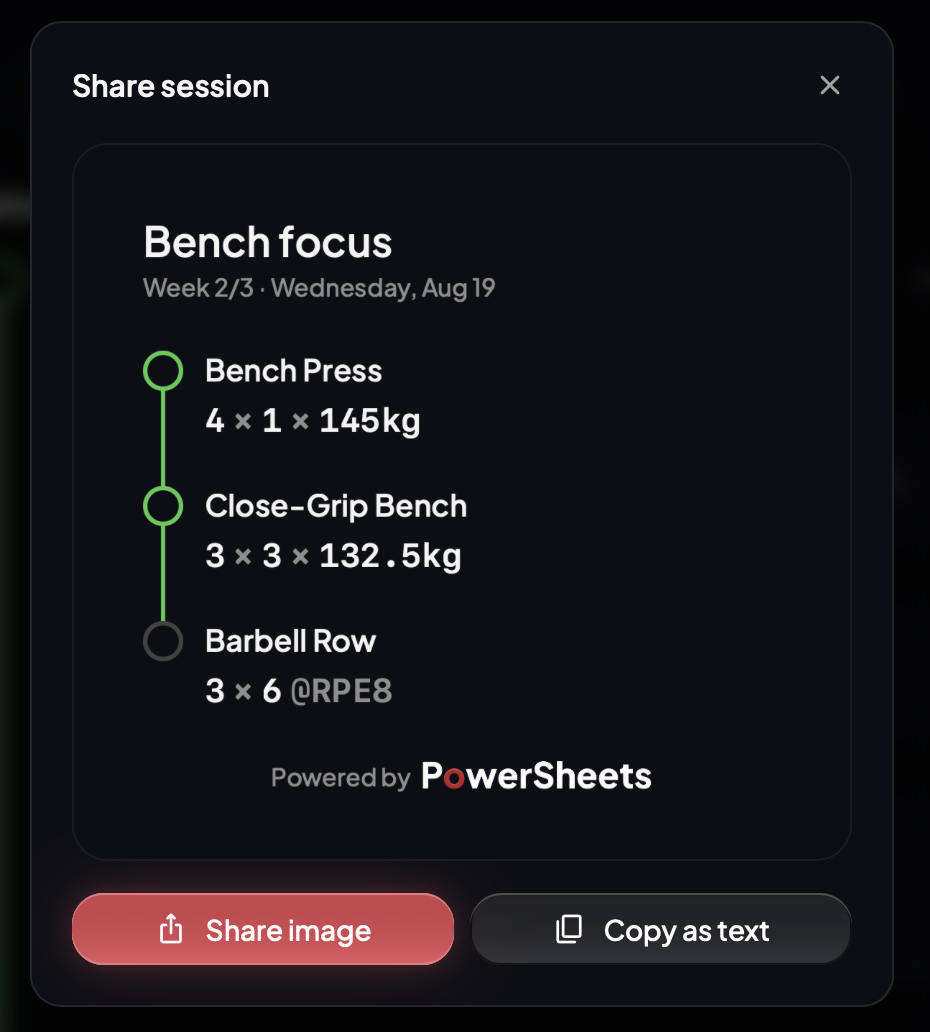
Share session dialog with a bench day card and Share image / Copy as text buttons

Athletes can now share a full training session or a single exercise straight from the app. There are two options:

  • Share as image: a clean card with color-coded exercises, weights and intensities.
  • Copy as text: plain text, ready to paste as a DM or caption.

Comes in handy when they send you a form check, so the numbers sit right next to the videos. Also great for IG stories, as a photo on top of their lift.

Spreadsheet import is live!

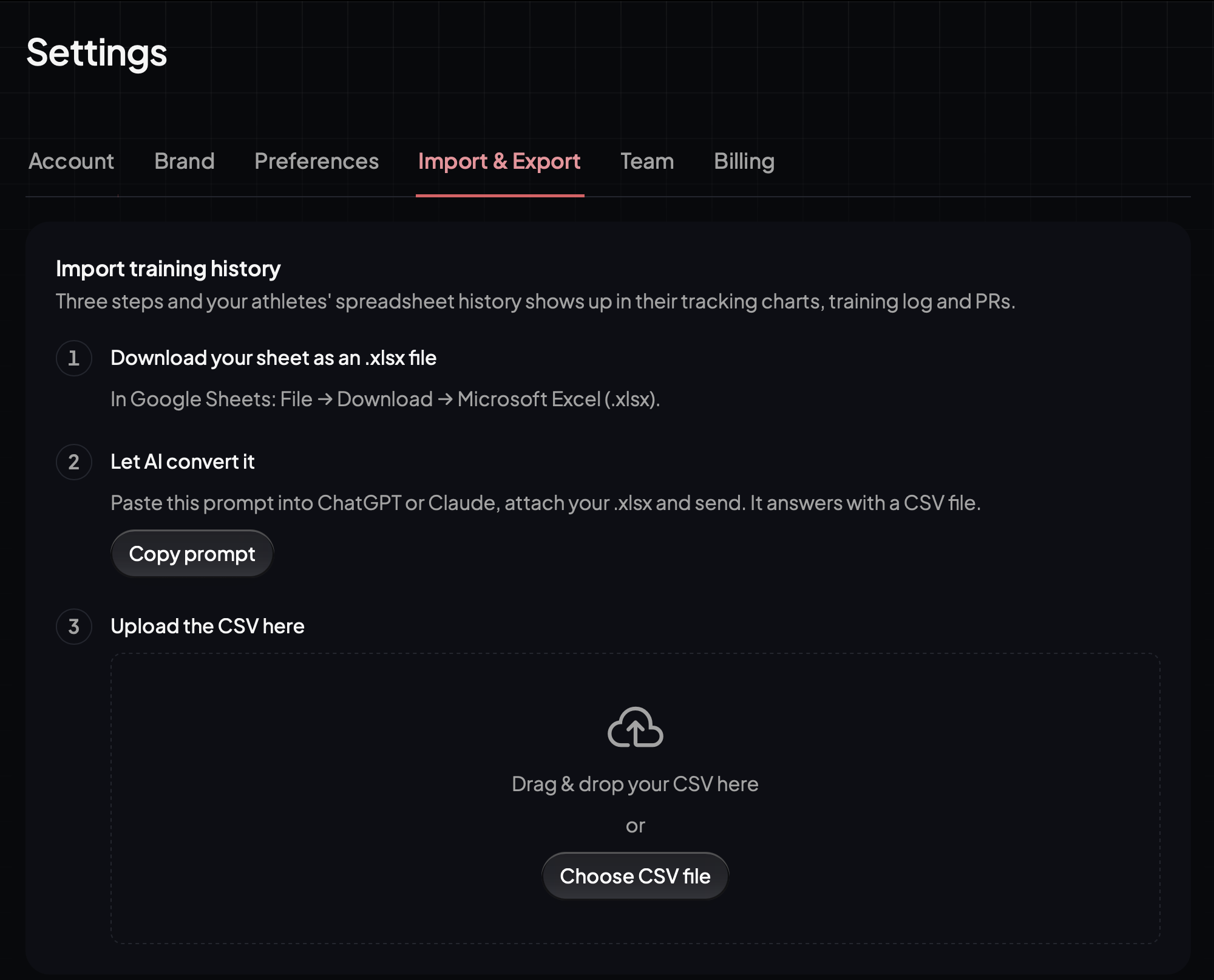
Settings, Import & Export tab, with the three-step training history import

Bring an athlete's full training history into PowerSheets. Works for any sheet layout.

  • Find it in Settings → Import & Export.
  • Imported training shows up in programming and tracking as its own macrocycle, charts and PRs included.
  • Athlete mid-block? Hit Continue this block and keep programming where the sheet left off.
  • Works for new and existing athletes.